Projects
Combine clips into longer videos
Projects lets you combine multiple AI-generated clips into a single polished video. Build 30-second to 2-minute sequences with a browser-based timeline editor.
The Editor
Three-panel layout inspired by professional editing software:
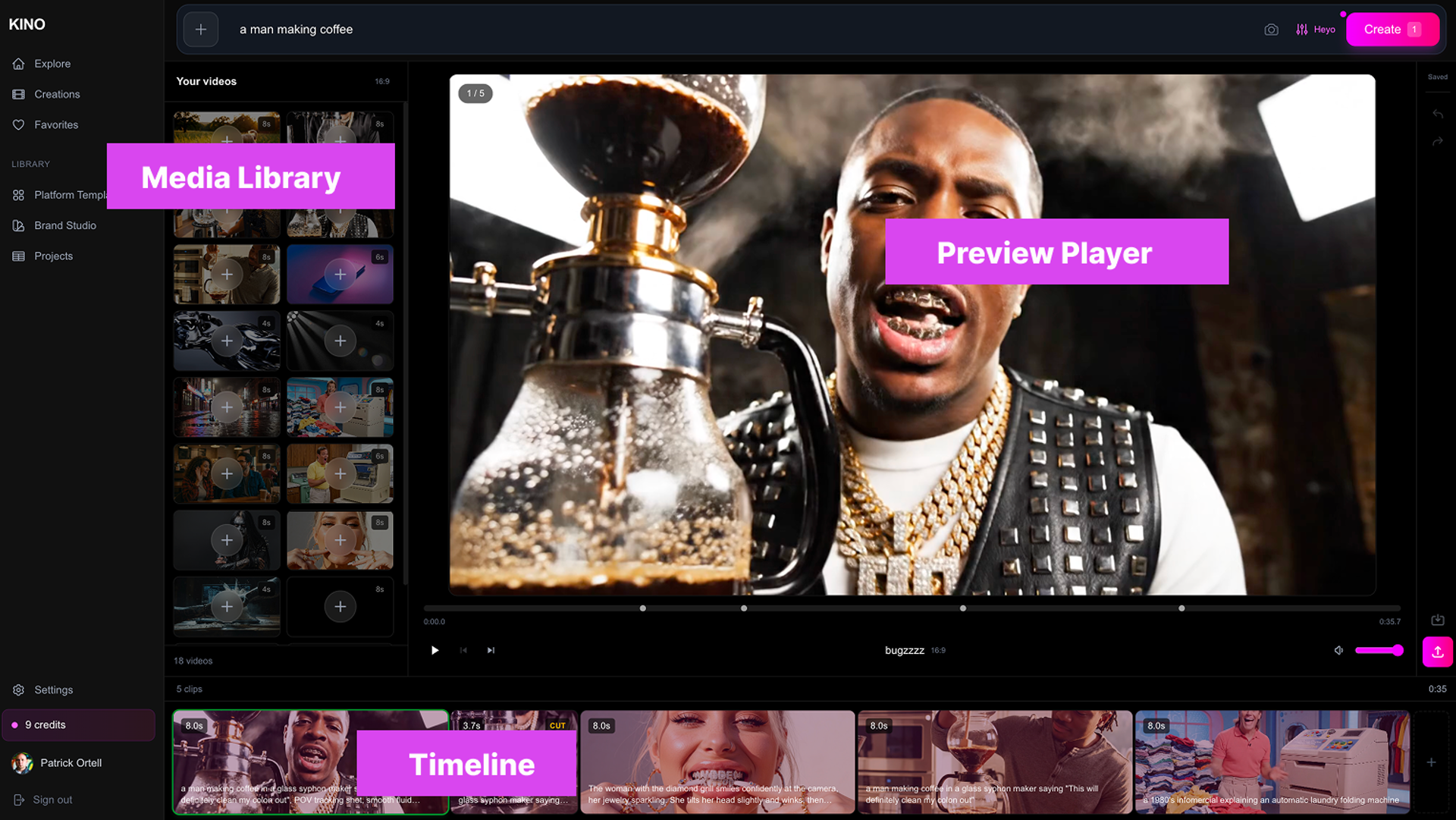
Your Videos
Library of clips to add to timeline
Preview Player
Watch and trim individual clips
Timeline
Arrange your sequence
Creating a Project
- 1
Go to Projects
Find it in your dashboard sidebar
- 2
Click New Project
Give it a name and pick an aspect ratio (16:9 or 9:16)
- 3
Add clips from your library
Drag videos from the left panel onto the timeline
Timeline
Your clips appear as blocks on the timeline. You can:
- •Reorder - Drag clips to change their position
- •Select - Click a clip to edit it
- •Delete - Remove clips from the sequence
Editing Clips
Click a clip to select it, then use the preview player to:
- •Trim - Set in and out points to use only part of the clip
- •Mute audio - Toggle the clip's audio on or off
- •Preview - Play just this clip to check your edits
Trimming
Trim clips to use only the best parts:
- 1.Select a clip in the timeline
- 2.Play or scrub to find your in point, click In
- 3.Find your out point, click Out
- 4.Click Back to return to the full sequence
Trimming is non-destructive. Click Reset to restore the full clip.
Exporting
When your sequence is ready:
- 1.Click the Export button in the toolbar
- 2.Choose quality: Optimized (smaller file) or Max quality
- 3.Click Export and wait for processing
- 4.Download your finished video
Export time depends on your sequence length. Longer videos take more time.
Keyboard Shortcuts
| Key | Action |
|---|---|
Space | Play / Pause |
Escape | Deselect clip |
Cmd/Ctrl + Z | Undo |
Cmd/Ctrl + Shift + Z | Redo |
Delete | Remove selected clip |
Auto-Save
Your work saves automatically. The save indicator in the toolbar shows:
- •Saved - All changes synced
- •Unsaved - Changes pending (yellow dot)
- ⟳Saving - Syncing to cloud
- ✓Just saved - Confirmed (green check)