Adding Images
Starting images, style refs, and subject refs
Click the + button to open the image panel with three sections.
kino.video
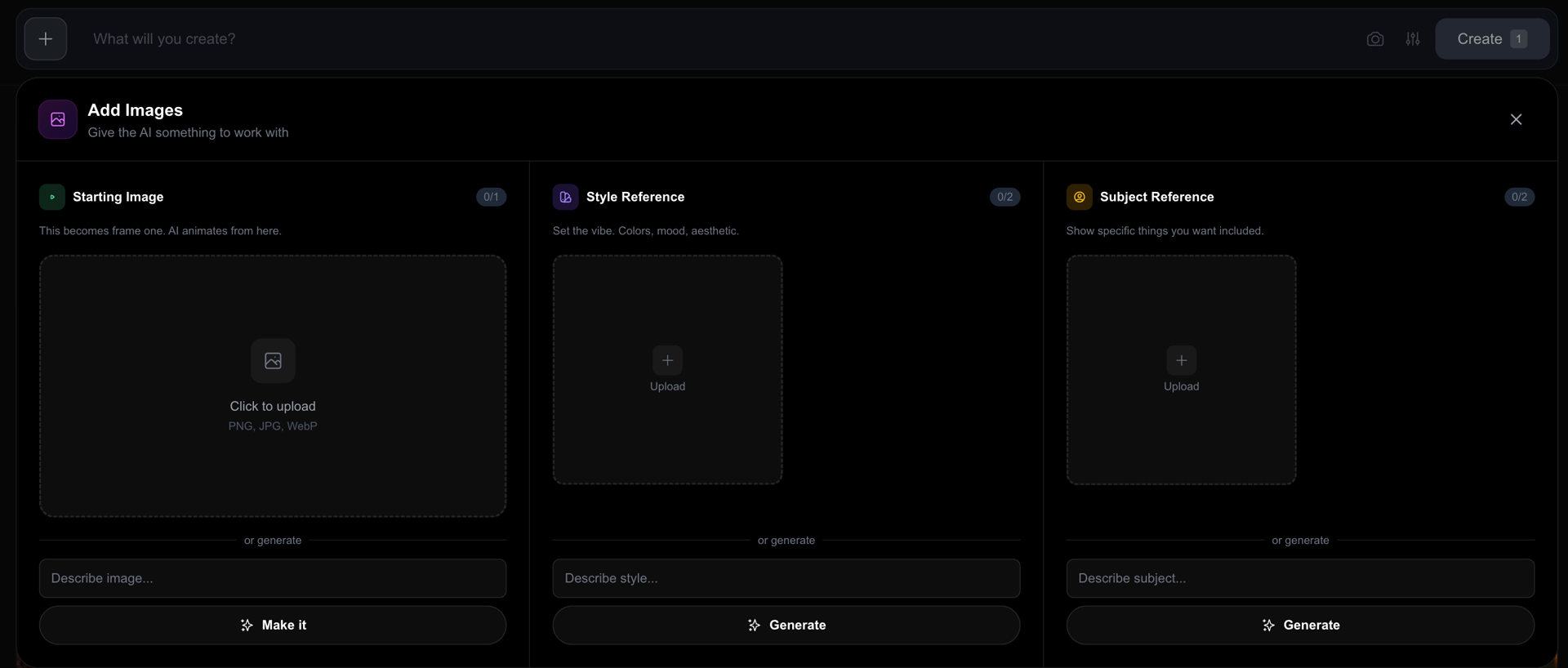
Starting Image (1 slot)
Your video's first frame. The AI will animate from this image.
kino.video
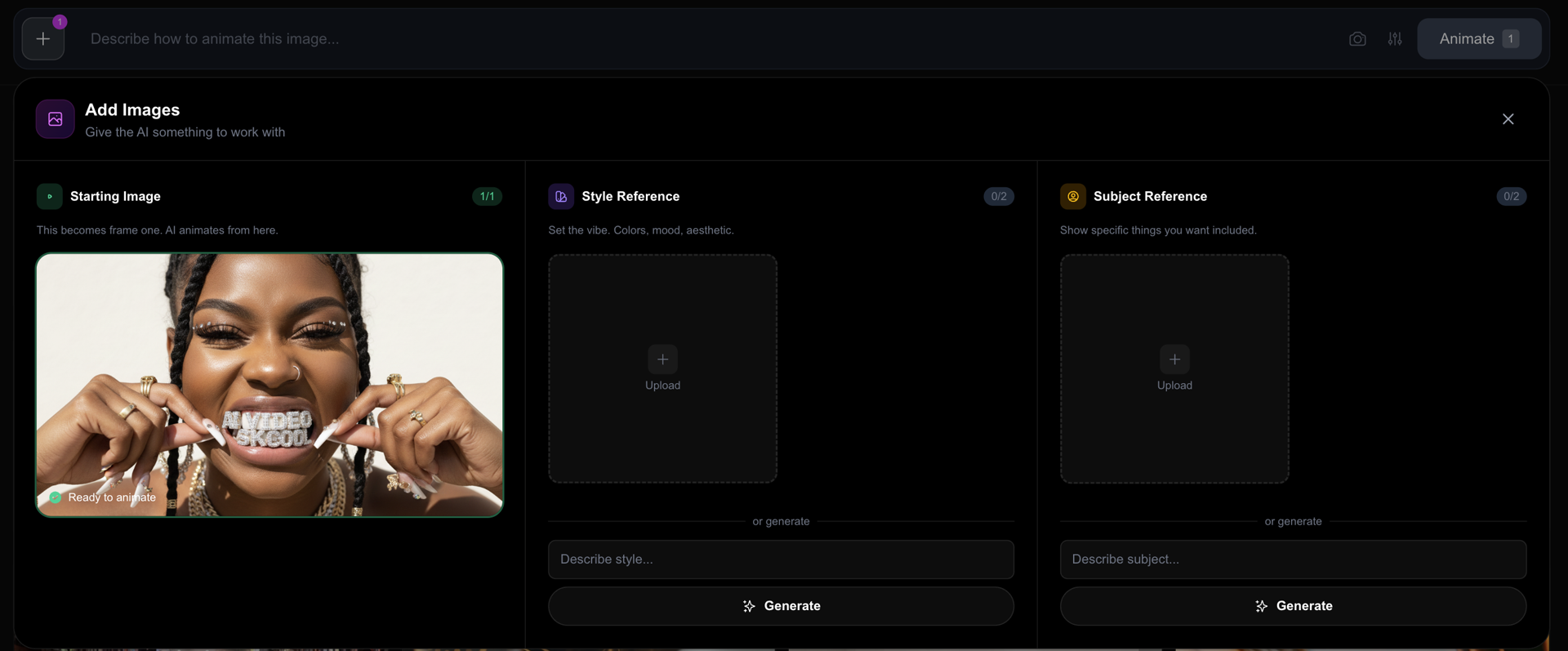
Options:
- Upload - Select a PNG, JPEG, or WebP file (max 10MB)
- Generate with AI - Describe the image and let AI create it
Tips:
- Use high-quality, well-lit images
- Ensure the subject is clearly visible
- Match the aspect ratio to your video settings
Style Reference (up to 2 slots)
Guide the visual aesthetic of your video. These images influence:
- Color palette
- Lighting mood
- Artistic style
- Overall atmosphere
kino.video
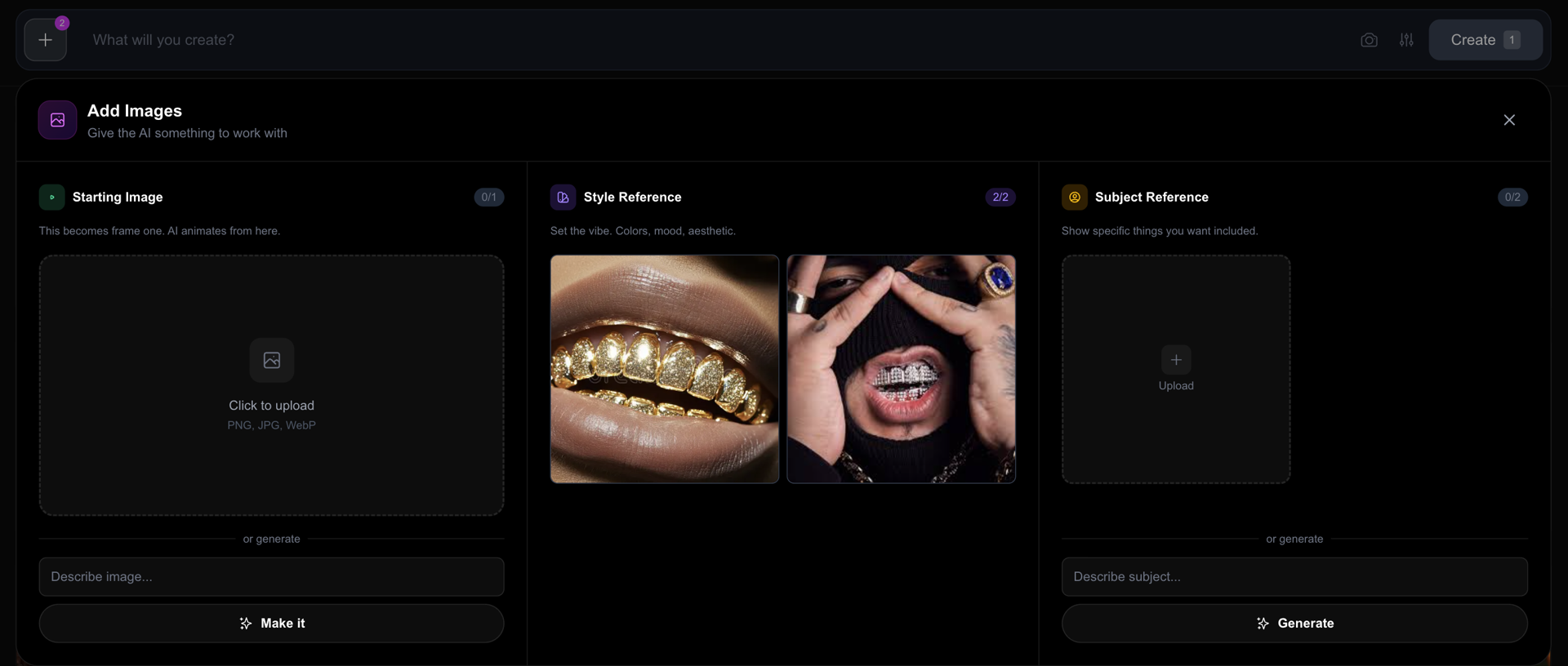
Style Reference Examples:
- Upload a movie still for cinematic look
- Add a painting for artistic style
- Use a color palette image for consistent tones
Subject Reference (up to 2 slots)
Ensure specific objects, characters, or elements appear consistently in your video.
kino.video
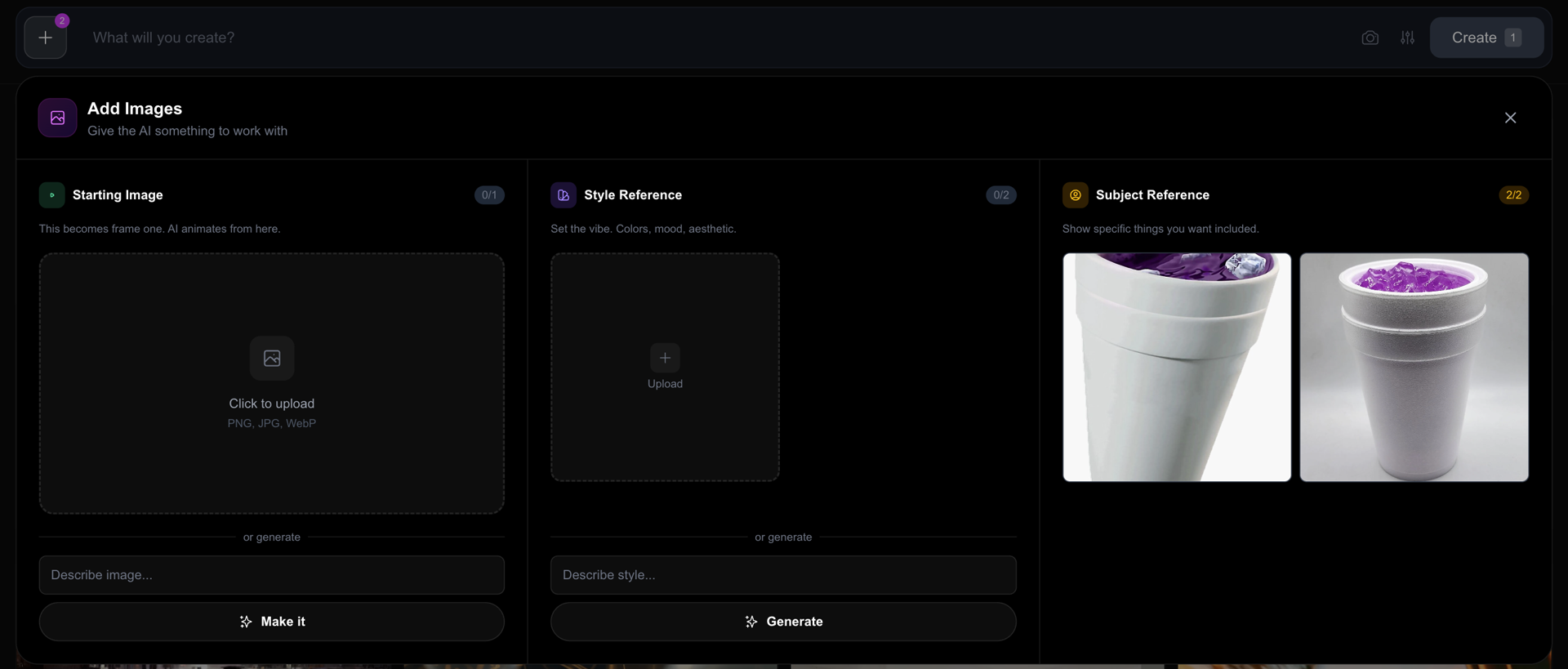
Subject Reference Examples:
- Product photos for consistent branding
- Character reference for animations
- Logo or brand assets
Combining References
The real power comes from combining all three:
Scenario: Animated product ad for a sneaker brand
- Starting Image: Hero shot of the sneaker
- Style Reference 1: Nike commercial frame (clean, dramatic)
- Style Reference 2: Color palette image (brand colors)
- Subject Reference: Brand logo
Prompt:
"The sneaker rotates slowly, dramatic studio lighting, clean white background, product photography style, premium feel"